
Best OBS Noise Suppression Plugins: Free, Paid, VST and AI Options
Keyboard clicks, PC fans, air conditioning: sometimes you only notice how much your microphone picks up when you listen back to a stream.
For free OBS noise suppression, start with RNNoise or Speex. For simple spoken-voice cleanup, try NoiLess. If room echo or audio restoration is also on your list, Clear, Clarity Vx and RX are worth comparing.
This guide helps you choose by the sound you want to reduce, ease of setup and how your voice sounds afterward.
OBS noise suppression plugins compared
| Option | Best reason to try it | Price (USD) | OBS setup |
|---|---|---|---|
| OBS RNNoise / Speex | Reduce background noise without installing anything | Free | Built-in filter |
| NoiLess | Simple AI noise reduction for chatting and gaming streams | Free trial / $19 one-time | Windows; VST3 host |
| ReaFIR | Reduce steady fan noise using a learned noise profile | Free | Windows; VST2 |
| Bertom Denoiser Classic | Low-latency denoising for voice or music | Free / pay what you want | VST3 host |
| Noise Suppression for Voice | Adjust RNNoise voice detection yourself | Free | Choose the right build; 48kHz |
| NVIDIA Broadcast / Noise Removal | Use a compatible NVIDIA setup you already own | Free with supported hardware | Broadcast input or OBS integration |
| iZotope VEA | Adjust voice tone and levels as well as noise | $31 | VST3 host; test the trial in OBS |
| Supertone Clear | Control background noise and voice reverb separately | $69 | Compatible VST build / host |
| Waves Clarity Vx | Adjust AI voice/noise separation with a main knob | $34.99 (sale) | Waves’ StudioVerse route |
| iZotope RX 12 Elements | Reduce steady noise and add audio-repair tools | $99 | VST3 host; choose the individual plugin |
Don’t choose only by how much noise disappears. Listen to quiet words, laughter and the ends of sentences, too. A quieter recording is not much help if it also loses your voice.
For a first paid plugin, NoiLess is the straightforward, lower-cost option for spoken streams. Compare Clear if room reverb matters, or Clarity Vx if you want another voice-focused AI option.
One setup detail matters: OBS’s built-in VST 2.x Plug-in filter does not load VST3. For NoiLess, VEA and other VST3 plugins, see how to use VST3 plugins in OBS.
Free noise suppression options for OBS
OBS RNNoise and Speex: start without extra software
Open your microphone’s Filters > + > Noise Suppression. RNNoise applies automatic, voice-focused processing; Speex lets you adjust the suppression level. With Speex, a more negative value means stronger suppression.
Try RNNoise first for everyday background noise. If it cuts off laughter or quiet speech, compare Speex with gentle settings. Listen for a muffled voice as you increase the strength.
For a quiet fan or light air-conditioning noise, the standard filter may be enough. If your voice stays clear and the noise no longer distracts from the stream, you can stop here.
ReaFIR: learn and reduce a steady noise floor
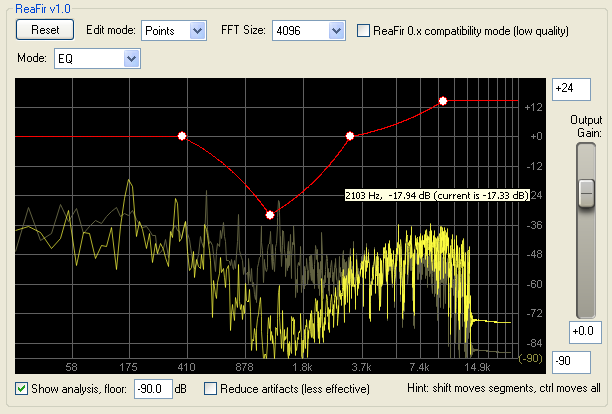
ReaFIR, included in the free Windows ReaPlugs suite, uses Subtract mode to learn a noise profile and reduce it. It is a useful choice for a steady fan or hiss, rather than separating sudden typing from overlapping speech.
Let it learn the background while you stay silent, then switch off automatic profile building before speaking. A compatible VST2 installation can load directly in OBS.
Bertom Denoiser Classic: a low-latency option for voice and music
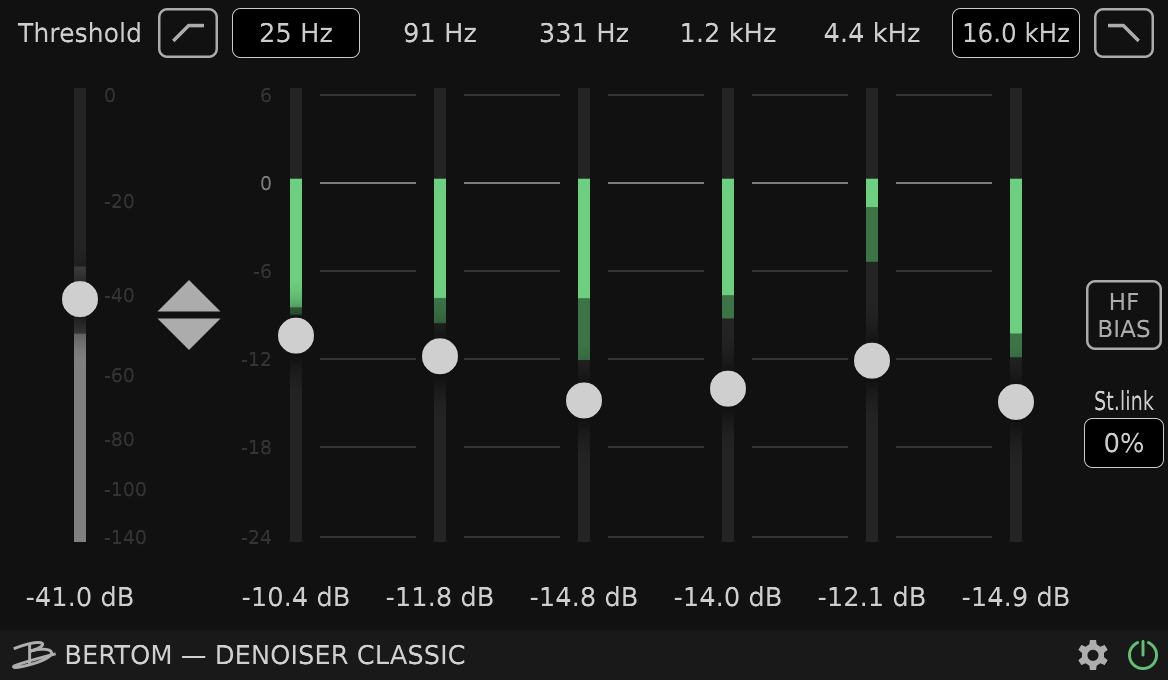
Bertom Denoiser Classic is available at a price you choose, including free. Its developer highlights low CPU use and zero plugin latency, and its use is not limited to speech.
Consider it when you want to gently reduce steady background hiss in voice or music. It supports Windows and macOS; use its VST3 build through a VST3 host in OBS.
Noise Suppression for Voice: more control over RNNoise
Noise Suppression for Voice is a free RNNoise-based project with controls for voice detection and keeping audio around the start and end of speech.
It is worth trying if you want to adjust how RNNoise treats your voice, but the extra setup makes it less convenient than OBS’s built-in filter. Follow your build’s instructions, including the 48kHz requirement.
NVIDIA noise removal: try the hardware you already have
NVIDIA Broadcast is a separate Windows application, not a VST plugin. With supported RTX hardware, it processes your microphone and provides an input you can select in OBS.
OBS also offers an NVIDIA noise-removal integration with the required SDK components installed. If you already have compatible hardware, compare one of these routes before buying a plugin. Test while your usual game is running, not just with an idle PC.
Paid noise reduction plugins for OBS
NoiLess: simple AI noise reduction for spoken streams
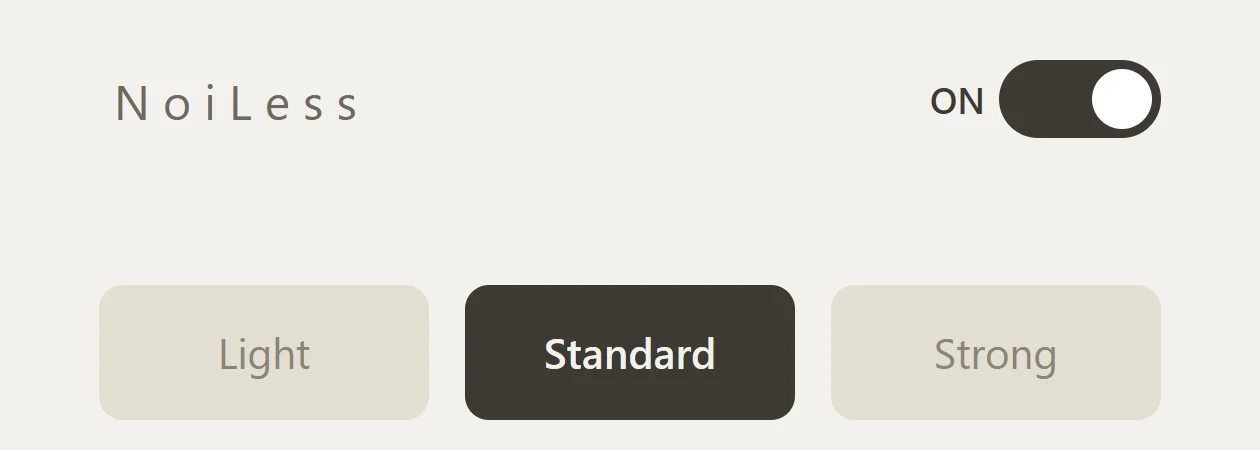
NoiLess is an AI noise reduction plugin for chatting, gaming and spoken-voice recordings. It helps reduce PC fans, air conditioning and keyboard sounds picked up by your microphone while you speak.
The controls are simply ON/OFF and three modes. Instead of learning a panel full of knobs, you can listen and choose the setting that suits your voice.
- Standard: a balanced starting point.
- Light: gentler suppression if you want less processing.
- Strong: compare this when distracting noise remains.
At $19 for a one-time purchase, it is the lowest-priced paid option in this comparison. For a first paid denoiser on a Windows spoken stream, this is where I would start.
The free trial mutes audio for 2 seconds every 45 seconds; the full version removes that restriction. Try it with your own microphone before choosing the full version.
For OBS, use Windows 11 (64-bit) and the free atkAudio Plugin Host. The download includes an English setup guide; you can also follow our VST3 setup guide for OBS.
iZotope VEA: improve tone, levels and noise together
iZotope VEA combines Shape for tone, Boost for level and Clean for background noise. It is a candidate if your voice sounds muffled or uneven as well as noisy.
Think of it as broader voice enhancement, rather than a dedicated denoiser. For simple noise cleanup, start with NoiLess; for an overall voice adjustment, compare VEA. Its VST3 build needs a host in OBS, and OBS is not on iZotope’s supported-host list, so check loading and recording with the trial first.
Supertone Clear: control voice, noise and room reverb separately
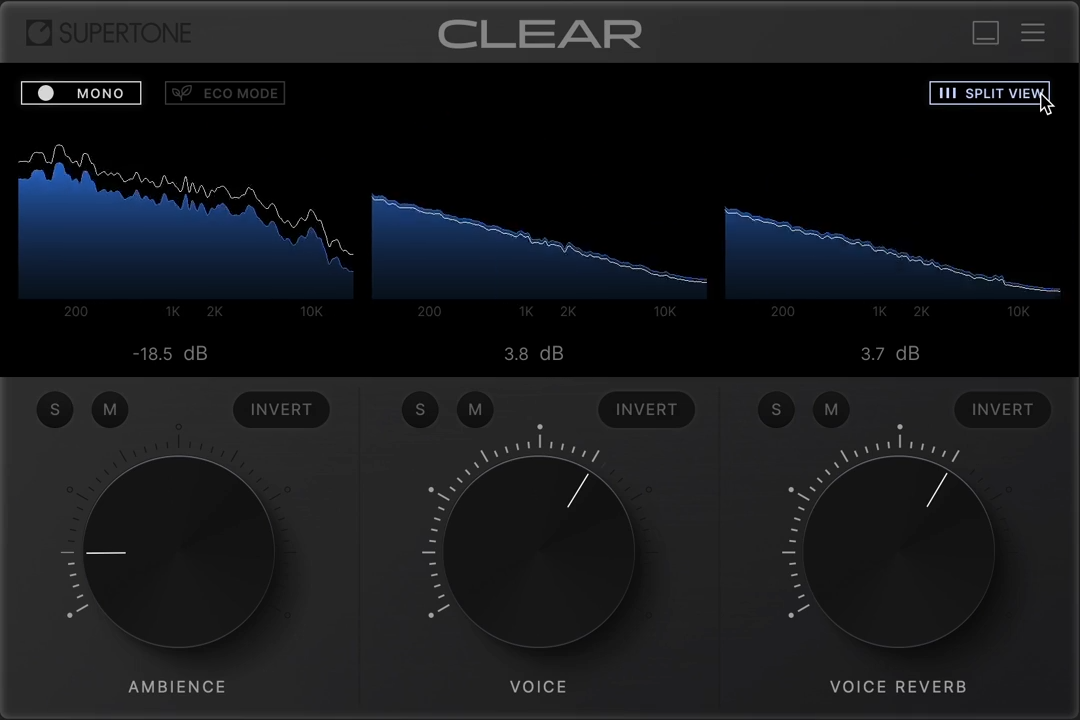
Supertone Clear separates voice, ambience and voice reverb. Its main advantage here is being able to reduce room reflections separately from background noise.
If you want simple speech cleanup, I would start with NoiLess. If room echo is also bothering you, Clear is the option I would compare next. Moving the microphone closer and softening reflective surfaces can help alongside the plugin.
Is there a free alternative to Supertone Clear?
For background noise, try OBS RNNoise or Speex, ReaFIR or Bertom. They are free options, but not direct replacements for Clear’s separate voice-reverb control. Clear’s trial is for evaluation rather than uninterrupted free streaming.
Waves Clarity Vx: AI voice cleanup with a main knob
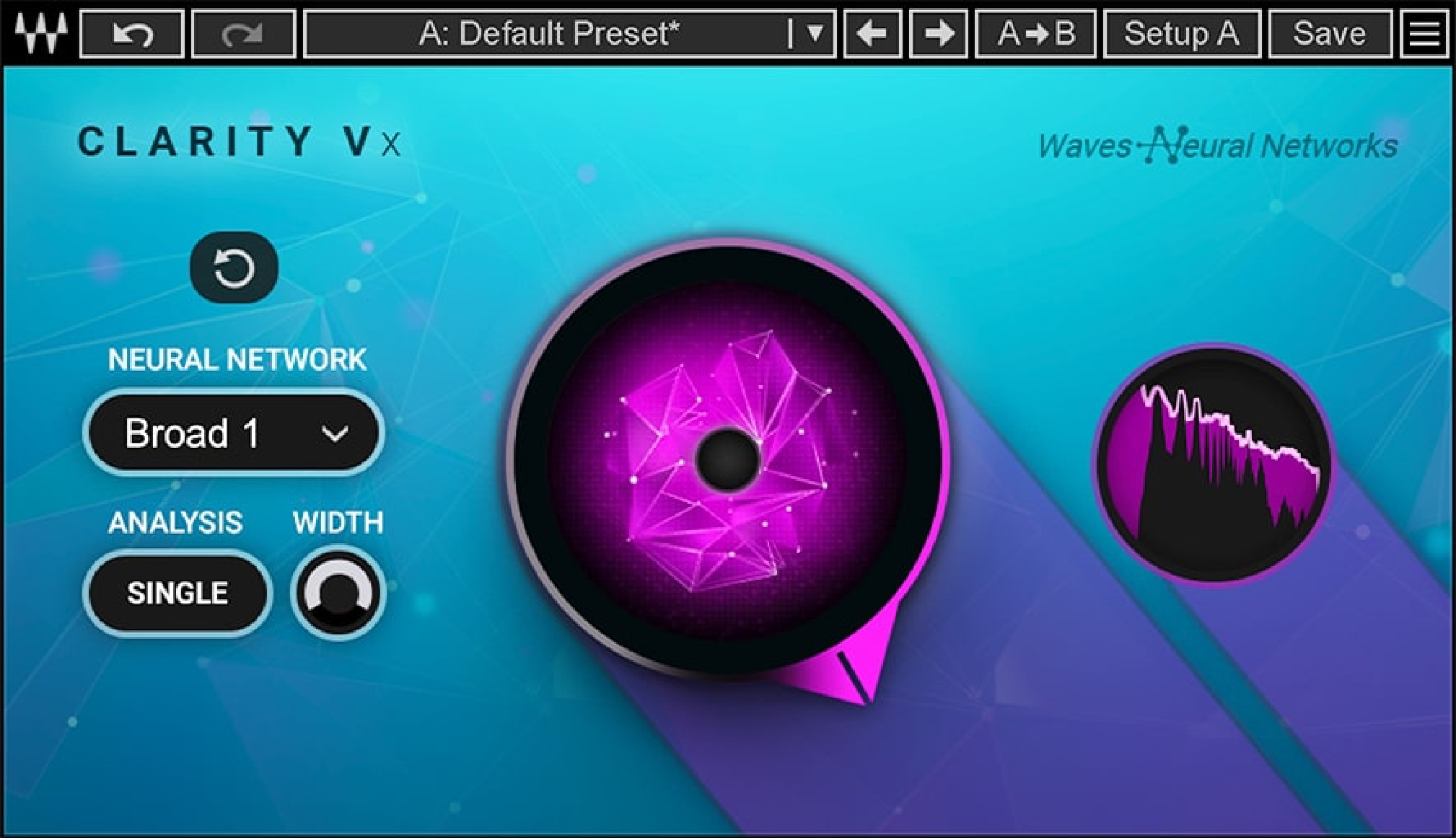
Waves Clarity Vx uses AI to separate vocals from background noise, with a main knob to adjust the balance. It is another straightforward candidate to compare with Clear when voice-focused noise removal is your priority.
Clear adds separate voice-reverb control; Clarity Vx focuses on the voice/noise balance. Compare the demos with your voice to decide which sound you prefer.
For OBS, follow Waves’ StudioVerse instructions, rather than expecting an ordinary standalone VST entry. That OBS route supports Intel Macs only on macOS.
iZotope RX 12 Elements: steady noise and audio repair
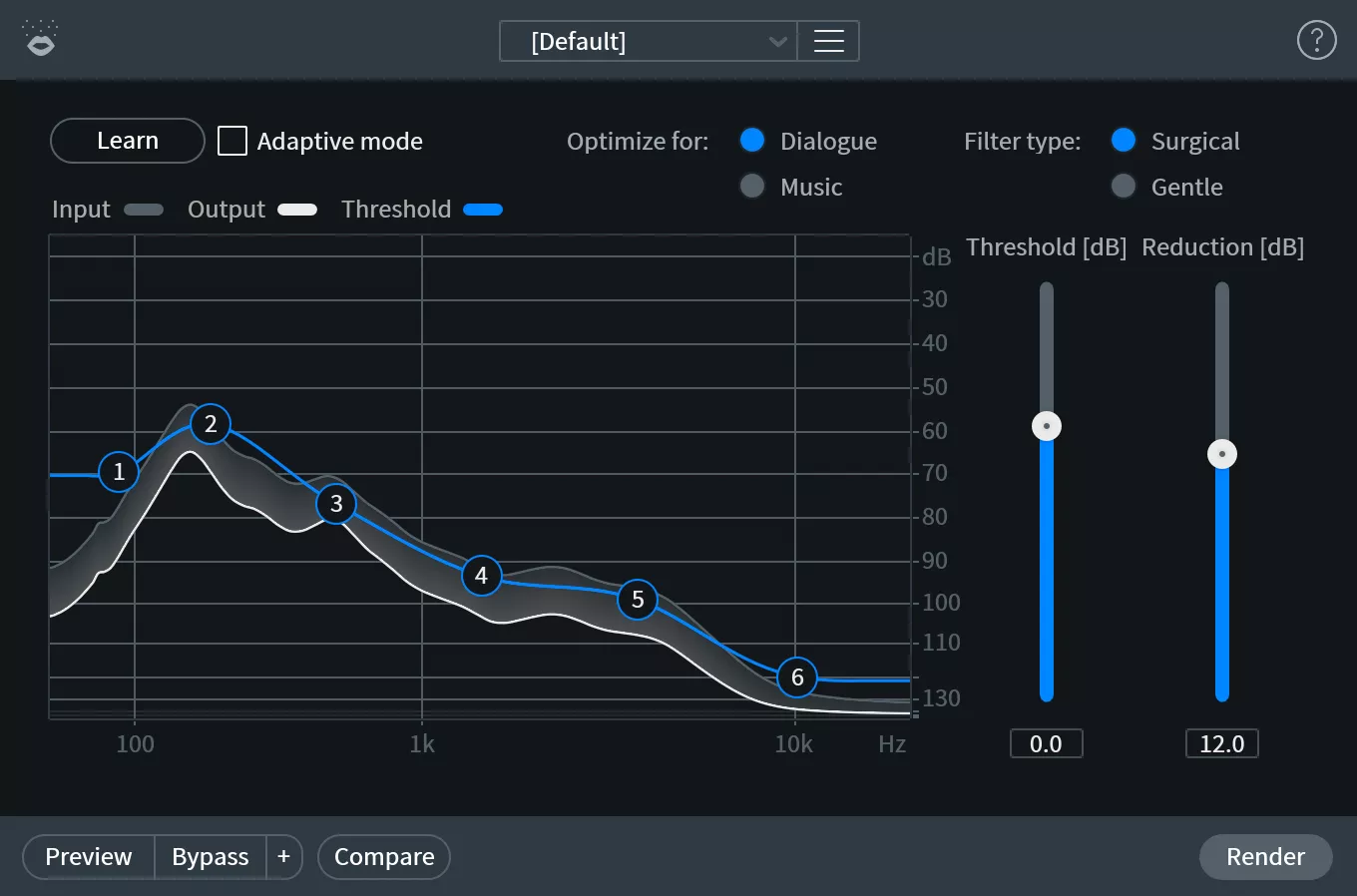
RX 12 Elements includes Voice De-noise for background-noise reduction and De-click for click repair, alongside other restoration plugins.
Voice De-noise is useful for a steady fan or air-conditioning noise, and supports real-time processing. If typing over speech is your main problem, compare NoiLess, Clear or Clarity Vx first.
Elements is the entry-level RX choice when those included tools are what you need. Use the individual VST3 plugin through a host in OBS. The separately named Mouth De-click requires Standard or Advanced, not Elements.
Choose the fix for the noise you actually hear
- Typing while speaking: compare a voice-focused denoiser and move the keyboard farther from the microphone.
- Fans or air conditioning: try gentle suppression, and keep direct airflow away from the microphone.
- Noise only while you are silent: a gate or expander may be enough. It does not separate noise from your voice while open.
- Room echo: check microphone distance and reflective surfaces; compare Clear if you need separate reverb control.
For installation, use VST2 in OBS’s VST 2.x filter, or a VST3 host for VST3. Our English VST3 guide covers loading NoiLess and other VST3 plugins.
For step-by-step fixes, see what to do when OBS noise suppression cuts out your voice or how to reduce keyboard noise while talking.
Before buying, check these three things with your own voice
- Record silence, normal speech, quiet words and the ends of sentences.
- Include the situation that bothers you, such as speaking while typing.
- Compare processing OFF and ON at similar volume. Listen for natural speech, remaining noise and timing.
Try one denoiser at a time so you can hear which one changes the sound. For singing or other non-speech audio, test that actual use rather than judging only a spoken sample.
Which one should you try first?
Free: start with OBS RNNoise or Speex. Simple paid speech cleanup: try NoiLess. Room reverb: compare Clear. Voice/noise separation: compare Clarity Vx. Choose VEA for broader voice enhancement, or RX when its extra repair tools are useful too.
Less setup, cleaner spoken streams: try NoiLess
NoiLess is an AI noise reduction plugin you can use in OBS. For chatting and gaming streams, start with Standard and compare Light if you want gentler processing. Test it with your own voice, then choose the full version if it suits your setup.