
How to Reduce Keyboard Noise in OBS While Talking
To reduce keyboard noise in OBS while talking, improve microphone placement and use noise suppression on the microphone. A noise gate alone cannot separate key clicks from your voice while the gate is open.
If your keyboard is silent during pauses but comes back as soon as you speak, you are not necessarily using the gate incorrectly. You are asking it to solve a different problem. This guide separates those situations so you can choose the adjustment that actually fits.
Start without buying anything: identify the source, move the microphone closer to your mouth and away from the keyboard, then compare suppression with a recording of speech and typing together.
Already tried placement and the built-in filter? Compare another denoiser with a free trial.
- 1. Make sure the clicks are coming through your microphone
- Why a noise gate does not remove typing under your voice
- 2. Move the microphone before adding more filters
- 3. Compare OBS noise suppression with speech and typing together
- 4. Use a gate or expander for the pauses
- If clicks still distract, try another live noise-reduction option
- The test that matters: talking and typing at the same time
1. Make sure the clicks are coming through your microphone
Start an OBS recording and type with the microphone source muted. If the clicks remain, check Desktop Audio, application audio capture, a second microphone or a duplicate source. Key sounds from a game or a keyboard sound app need a different fix from sound picked up in the room.
If muting the microphone removes the clicks, unmute it and record these three situations:
- Type without speaking.
- Speak while typing at your normal pace.
- Type without speaking, then lightly rest your hands on the desk to listen for low thumps.
| What the recording shows | Where to start |
|---|---|
| Clicks mainly during pauses | Try a gate or gentle expander after improving placement. |
| Clicks under your speech | Improve the voice-to-keyboard balance and compare noise suppression. |
| Low knocks or desk rumble | Check vibration reaching the microphone stand or arm. |
| Clicks remain with the mic muted | Find another captured audio source before adjusting mic filters. |
Use headphones to listen to the recording. A microphone’s direct-monitor output may bypass OBS filters, so it is not a reliable way to judge what the stream receives.
Why a noise gate does not remove typing under your voice
A gate opens when the input passes its threshold. Once open, it lets the microphone signal through, including keyboard sound captured at the same time as your speech.
Raising the threshold will not teach the gate to recognize a keyboard. It can instead make quiet words fail to open it. A sufficiently loud key click can also open it on its own.
Use the gate for quieter gaps, not as the only solution to typing while talking. Speech-oriented noise suppression is the more relevant filter to compare for overlapping noise, although the result still depends on your microphone, keyboard and voice.
2. Move the microphone before adding more filters
A desk microphone close to the keyboard and far from your mouth starts with an awkward balance: loud clicks and a relatively quiet voice. Moving it toward your mouth can give the software a better starting signal.
- Put the microphone nearer your mouth. Try a comfortable close position that does not block your screen. Check breath noise and bass as you move it.
- Increase its distance from the keyboard. Above or beside the keyboard may work better than a stand directly next to the keys. Record each position rather than judging by appearance.
- Use the correct pickup side. Side-address and end-address microphones are used differently. Speaking into the wrong side can leave your voice quieter than it should be.
- Use the pickup pattern deliberately. For a cardioid mic, try placing the keyboard toward the less-sensitive rear. Supercardioid and hypercardioid models also pick up some sound at the rear, so check your model’s pattern instead of applying the same angle to every mic.
The pickup-pattern distinction is explained in Shure’s microphone directionality guide. It is the direction relative to the capsule that matters, not simply whether the cable points toward the keyboard.
After moving the mic, reset the input gain if needed. Keep your speaking volume comfortable and leave room for louder reactions. Lowering gain alone turns down both your voice and the keyboard; the useful improvement is a better balance between them.
Separate desk vibration from airborne clicks
If the recording contains low knocks rather than just sharp clicks, try lifting the microphone stand away from the keyboard area. A desk mat may soften impacts, while a suitable shock mount can reduce vibration transmitted to the microphone.
A boom arm is helpful for positioning, but it is not automatically vibration-free when clamped to the same desk. Listen again after changing the mount. A quieter keyboard is another option later, but test placement first before replacing equipment.
3. Compare OBS noise suppression with speech and typing together
- Open Filters for your microphone in the OBS Audio Mixer.
- Add Noise Suppression if it is not already present.
- Try RNNoise and record a sentence while typing.
- Compare with suppression off, keeping microphone position and speaking volume similar.
- If words become muffled or disappear, compare lighter Speex suppression rather than stacking another denoiser on top.
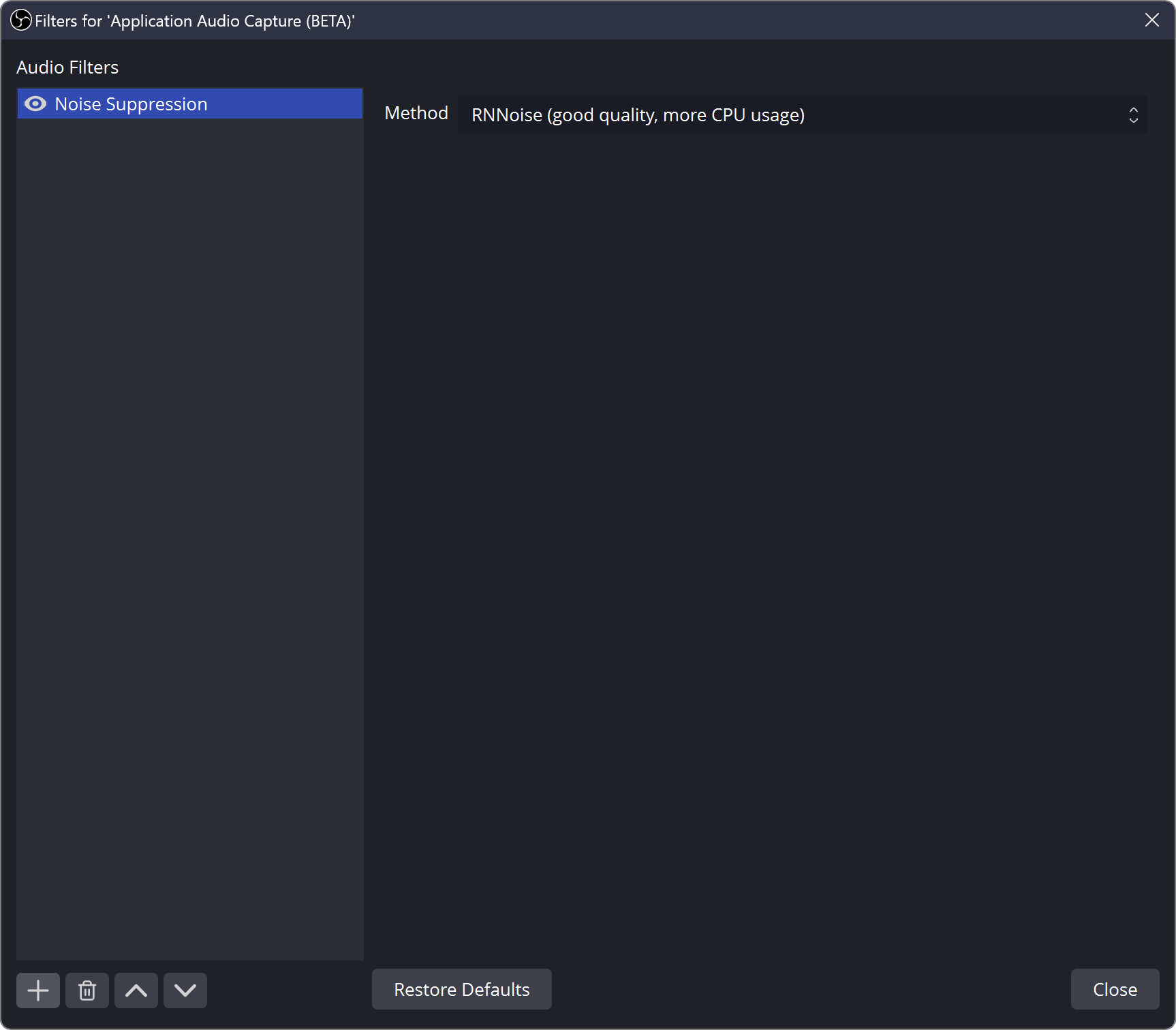
RNNoise is worth comparing as a built-in option, but there is no single OBS preset that guarantees silence from every mechanical keyboard. Check the words underneath the clicks as well as the clicks themselves.
If your microphone software or virtual input already removes noise, compare that processing alone too. More filters can make it harder to find which one is changing your voice.
4. Use a gate or expander for the pauses
When overlapping clicks are under control but pauses are still noisy, add a gate or expander only if you need one. Start with one of them, not both.
For a gate, find a threshold that background sound stays below but your quieter speech still exceeds. Keep its close threshold lower than its open threshold. If a click is as loud as your quiet speech, a threshold cannot reliably distinguish them.
An expander makes low-level input quieter with a smoother transition. Start with gentle expansion, such as a 2:1 ratio, then adjust its threshold while speaking quietly. It does not selectively remove clicks mixed with speech either. OBS generally places it after compression and before a limiter, if those filters are in use.
The OBS gate explanation and expander explanation describe these level-based controls. Judge them by complete sentences, not by the silence between sentences alone.
If clicks still distract, try another live noise-reduction option
Once the microphone position is sensible, testing a different denoiser is a reasonable next step. You do not need to buy one before hearing what it does to your own setup.
NoiLess: AI noise reduction for talking while you type
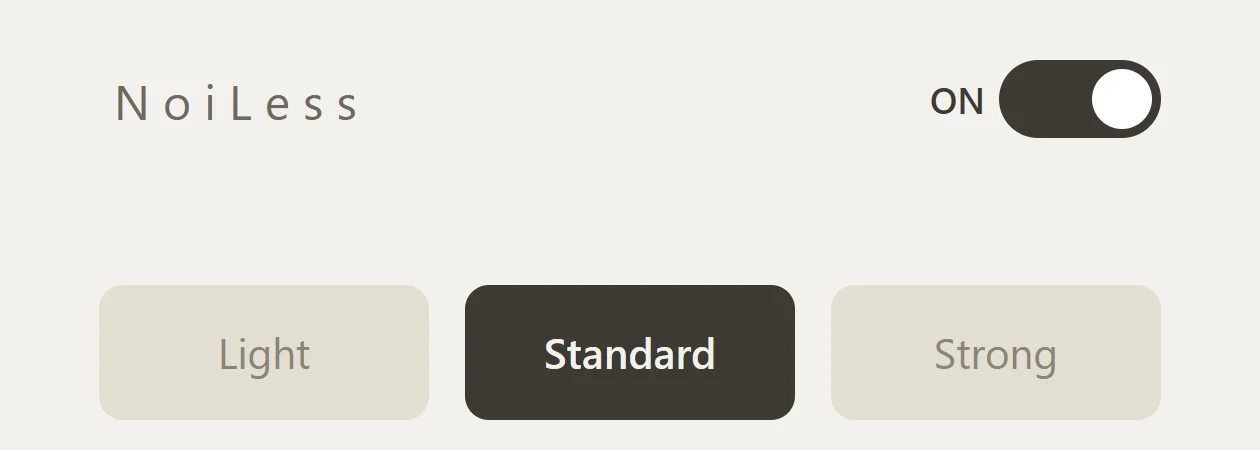
NoiLess is an AI noise reduction plug-in for spoken voice. Its three modes let you compare how much background noise to reduce, including keyboard sound captured by your microphone.
Record yourself talking and typing with Standard, then compare Light or Strong if needed. Listen for clearer speech as well as quieter clicks.
NoiLess runs in OBS on Windows through the free atkAudio Plugin Host. Use the English VST3 installation guide and README_EN.txt supplied with the ZIP. The trial mutes audio for 2 seconds every 45 seconds; use a recording to evaluate it before streaming.
For other options, including free methods and hardware-dependent tools, see the OBS noise suppression plug-in comparison.
The test that matters: talking and typing at the same time
Make one recording without suppression and another with your chosen settings. Keep the microphone position, recording level and typing style as similar as practical. Include normal speech, a quiet sentence, typing during speech and typing during a pause.
A clip of typing alone shows noise reduction, but not whether your voice survives alongside it. For your own streaming setup, listen to both. Reject settings that erase words, even if they make the keyboard impressively quiet.
There is no need to eliminate every trace of a keyboard. Aim for clicks that do not compete with what you are saying, and a voice that still sounds comfortable to listen to.