
OBS Noise Suppression Cutting Out Your Voice? How to Fix It
If OBS noise suppression cuts out your voice, first turn that filter off and make a short recording. If your words return, change the suppression method or improve the microphone input. If they still disappear, check your noise gate, expander and any processing outside OBS before installing another plug-in.
A quiet room is useful, but not if viewers have to guess what you said. The aim is a clearer voice, not a perfectly silent meter. This guide walks through the free checks first, then an alternative you can try with your own microphone.
Quick route: compare suppression off and on, check the gate separately, improve the voice-to-noise balance, then compare another method. Change one thing at a time so you know what actually helped.
Already confirmed that suppression is the problem? Jump to an alternative you can test with your own voice.
- Is it noise suppression, a gate or the microphone?
- 1. Record the same voice with suppression off and on
- 2. Check the gate before blaming RNNoise
- 3. Give the filter a clearer voice to work with
- 4. Try lighter Speex suppression if RNNoise does not suit your voice
- 5. If your voice still changes, compare a different denoiser
- Final check: can viewers hear all of your words?
Is it noise suppression, a gate or the microphone?
Different problems can all sound like a microphone cutting out. Use the pattern below to choose your first check.
| What you hear | What to check first |
|---|---|
| Watery, muffled or robotic speech | Turn off Noise Suppression and compare. Also check whether another app is already removing noise. |
| The start of a sentence or quiet endings vanish | Disable Noise Gate and Expander separately. A threshold may be above your quieter speech. |
| Quiet speech, laughter or sustained sounds disappear only with RNNoise | Try a different suppression method with those same sounds. |
| Crackling on loud words, even with filters off | Check input gain and clipping before adding more processing. |
| Dropouts remain with every OBS filter off | Check the microphone connection, its control app and the original input signal. |
This is a troubleshooting guide, not a diagnosis from the sound alone. The off/on comparison matters more than the label you give the problem.
1. Record the same voice with suppression off and on
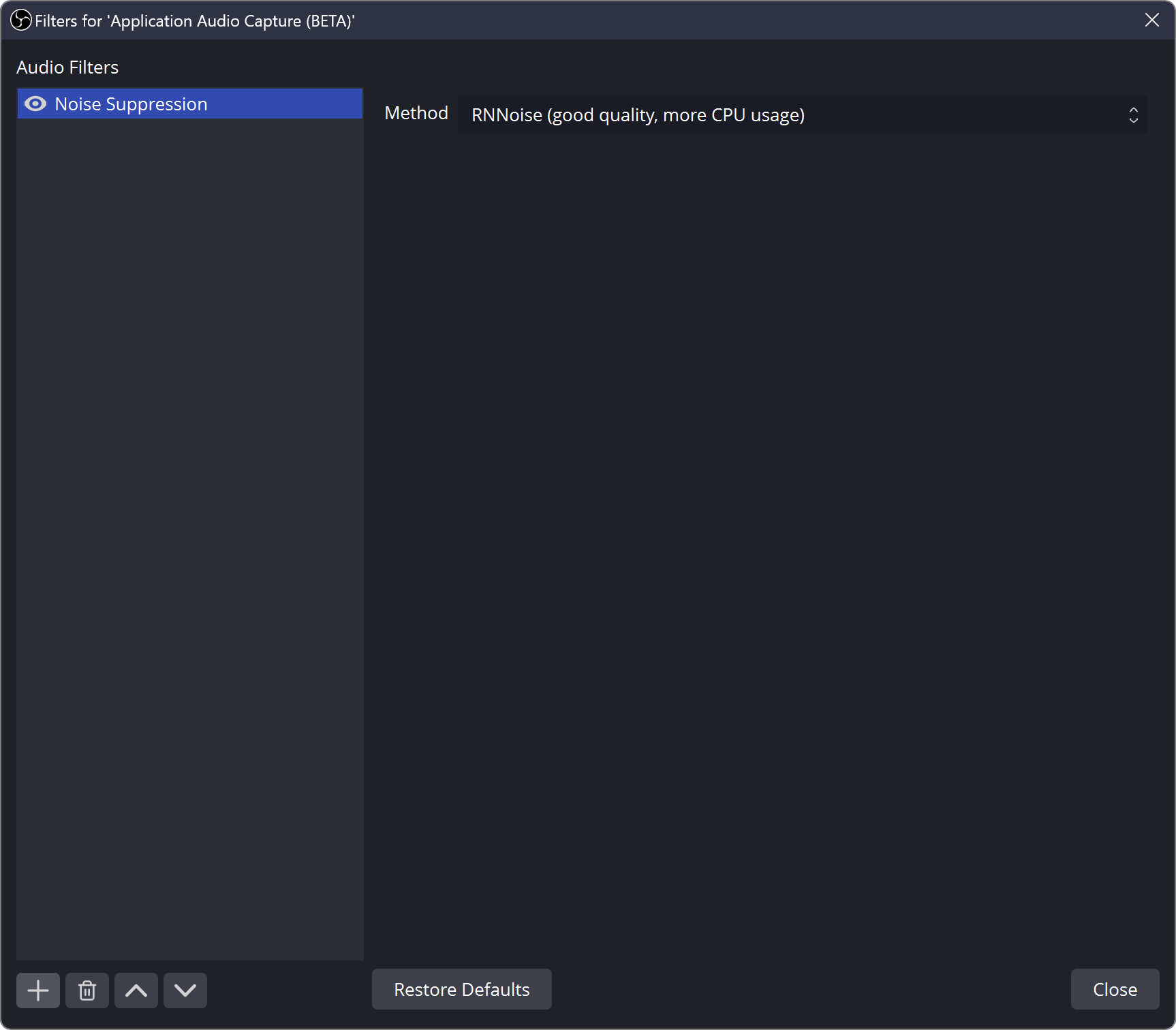
- In the OBS Audio Mixer, open the menu for your microphone and select Filters.
- Click the eye icon beside Noise Suppression to disable that filter. Do not mute the microphone itself.
- Record normal speech, a quiet sentence, a laugh and a few words with soft endings.
- Enable suppression and record the same sequence from the same position.
- Listen to the recordings through headphones. Check whether words stay intact, not just whether the pauses sound cleaner.
Headphones connected directly to an audio interface may play the microphone before OBS filters. That sound cannot tell you what the stream is receiving. Check an OBS recording with the microphone included in the recorded audio track.
If disabling suppression fixes the problem, leave the other settings alone for now and continue below. If it does not, disable your gate or expander one at a time. When several filters are involved, keep a note of the original settings before changing them.
If dropouts remain with filters disabled, do not treat a denoiser as the fix. Check the input in another recording app and look for connection, driver or performance problems, especially if other audio sources also break up.
2. Check the gate before blaming RNNoise
A gate responds to level. If your voice is too quiet to open it, the first part of a sentence may be missing. If it closes as your voice fades, the end may be missing instead.
Record with the gate off. If that restores your words, lower the relevant threshold toward a more negative dB value, then test your quietest normal speech. Keep the close threshold below the open threshold. Adjust hold and release if endings still stop abruptly.
If quieter speech and background noise reach similar levels, there may not be a useful threshold between them. Do not keep raising it to chase silence. Improve microphone placement instead. An expander can make the transition less abrupt, but it also needs a threshold that leaves your voice intact.
3. Give the filter a clearer voice to work with
A microphone on the far side of the desk captures a quieter voice relative to the room. Moving it nearer your mouth can improve that balance before any software is involved.
- Speak into the correct side. Some microphones are addressed from the end; others from the side. Follow your model’s pickup direction.
- Try a closer, comfortable position. Move the mic gradually and record again. If breath or bass becomes excessive, adjust the angle or distance and use a pop filter.
- Set input gain for real speech. Your quiet sentences should be audible, while louder reactions should not reach clipping. Do not compensate for a distant microphone with gain alone.
- Check upstream processing. A microphone app, virtual audio device or system enhancement may already apply a gate or denoiser before the signal reaches OBS.
For example, if laughter only disappears when two denoisers are enabled, compare each one alone. Stacking them is not automatically an improvement. Likewise, boosting the level after a word has been removed cannot recreate the missing word.
Your normal streaming voice is the one to test. Do not force yourself to speak louder throughout a stream just to keep a gate open.
4. Try lighter Speex suppression if RNNoise does not suit your voice
OBS’s built-in RNNoise method has no suppression-strength slider. The Suppression Level control belongs to Speex. Choose Speex in the Method menu if you want to compare an adjustable built-in option.
As a starting experiment, try a modest setting such as -10 dB, then repeat the recording. This is not a universal preset: moving toward 0 reduces suppression, while more negative settings increase it. Stop when the noise reduction is useful without damaging your words.
Use one suppression method at a time. If RNNoise preserves your speech better, keep it; if lighter Speex sounds more natural in your room, that may be the better choice. You do not need to replace a method that already works.
Also apply voice-oriented suppression to the microphone, rather than a combined source carrying your voice, music and game sound. If your goal is singing or sustained notes, make a separate test with those sounds instead of relying on a spoken sentence.
5. If your voice still changes, compare a different denoiser
When placement and filter settings are sensible but the result still sounds wrong, comparing another denoiser is more useful than endlessly changing unrelated controls. Keep a recording with no suppression as your reference.
NoiLess: AI noise reduction for your streaming microphone
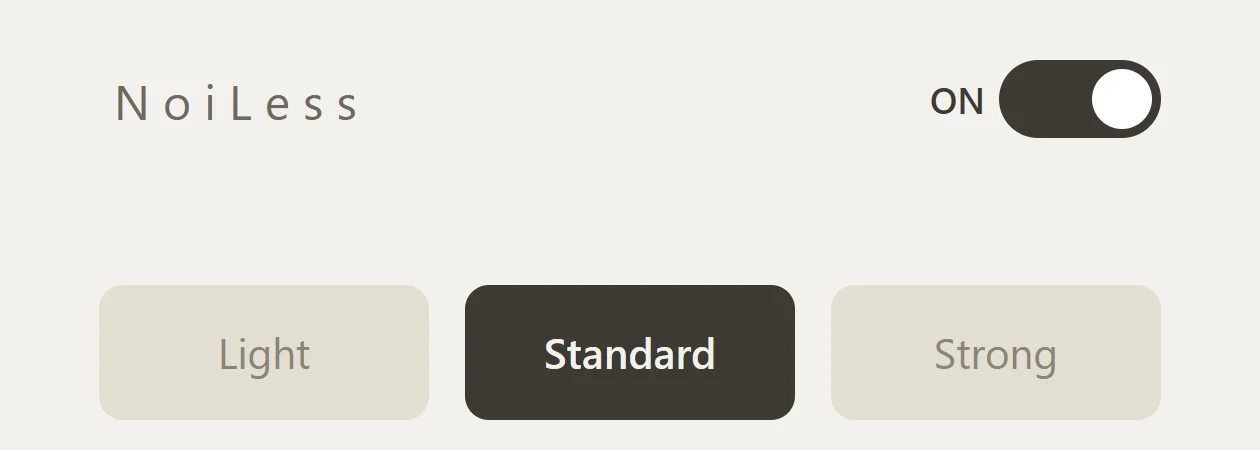
NoiLess is an AI noise reduction plug-in for spoken voice, with Light, Standard and Strong modes. It is an option to compare when OBS’s current suppression changes your voice more than you like.
Try Light and Standard with your quiet sentences and laughter. Choose it only if the balance between your voice and remaining noise suits your recording.
For OBS on Windows, NoiLess uses the free atkAudio Plugin Host; it is not loaded by OBS’s built-in VST 2.x filter. Follow the English VST3 setup guide and the ZIP’s README_EN.txt. The trial deliberately mutes audio for 2 seconds every 45 seconds, so evaluate it in a recording before going live.
Want to compare free and paid alternatives first? See our OBS noise suppression plug-in comparison.
Final check: can viewers hear all of your words?
Record a short version of your real stream: a normal introduction, a quieter aside, a laugh and a pause. Include keyboard use or game sound if they are part of your setup.
Listen for complete words, comfortable volume and an acceptable amount of room noise. A little background sound is usually a better trade than losing part of your voice. Save the settings that pass that test, rather than chasing a silent meter.